Welcome to Rooms: A New MPS Communications Experience
November 16, 2026 - We’re excited to roll out a new tool that will simplify how we communicate with you! Rooms, built right into the new Midland Public Schools mobile app, offers secure, safe two-way messaging between guardians and school staff within a single platform. Rooms can be accessed through the new MPS app, where you'll receive important announcements, teacher messages, school news, and events - all at your fingertips.
Guardian Invite
Guardians will receive an email and SMS message on Monday, November 16, at 4 p.m., inviting you to log in to Apptegy Rooms within the MPS app. Below is additional information regarding the Guardian Invite.
SMS Message:
- Rooms SMS notifications: 27806 - SMS text notifications will be sent from this short code when a parent/guardian has a new message from their child's teacher.
- Rooms verification/invitation codes: 20819 - SMS Guardian Invite and invite reminder notifications will be sent from this short code.
Email:
Check for an account setup invitation from accounts@thrillshare.com that features official district branding. Please follow the steps outlined in that email to complete your setup. View the Guardian Invite Flyer for additional information.
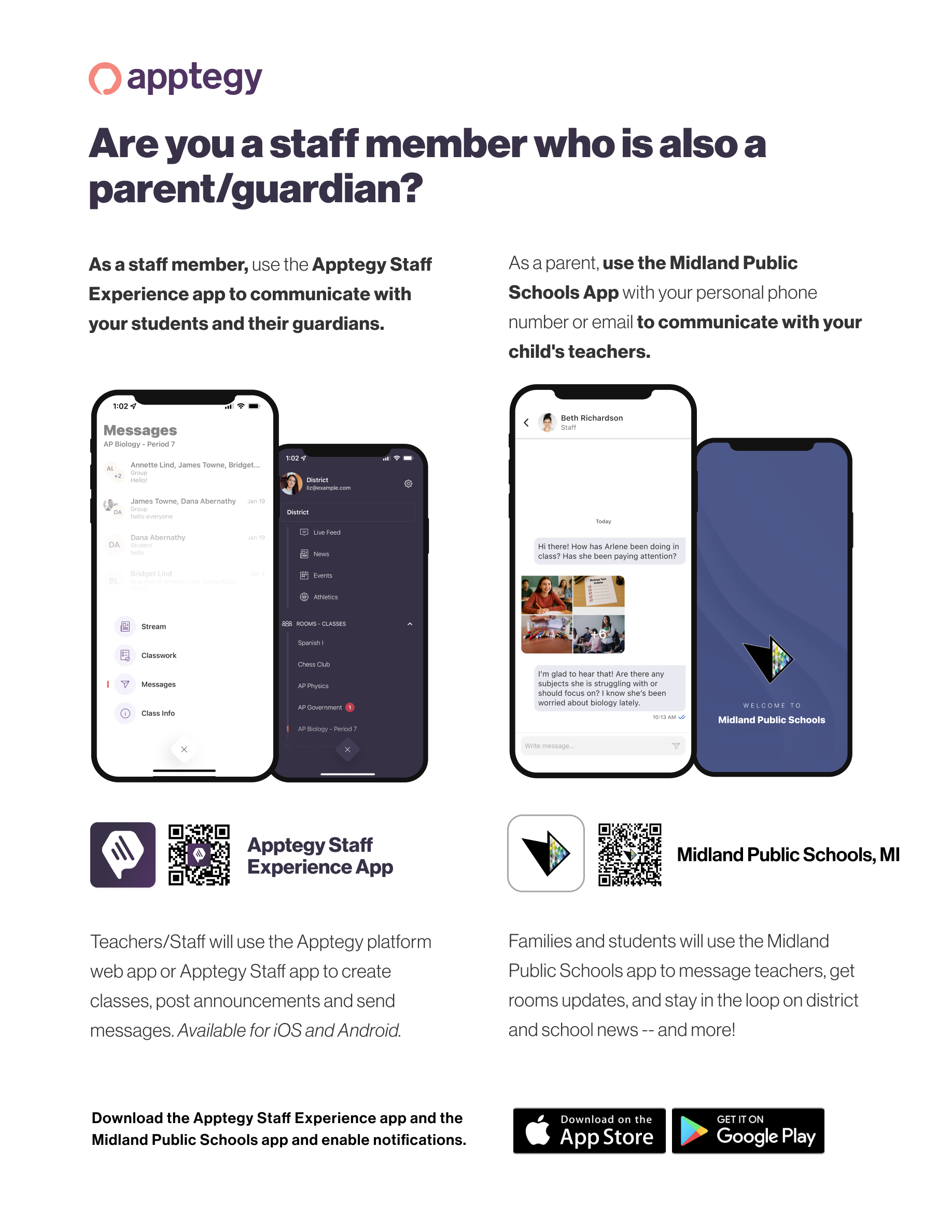
If you're a staff member and an MPS guardian, you'll need to download both the Apptegy for Staff app and the MPS app to communicate on both sides of the platform. Learn more here.
How to Get Started
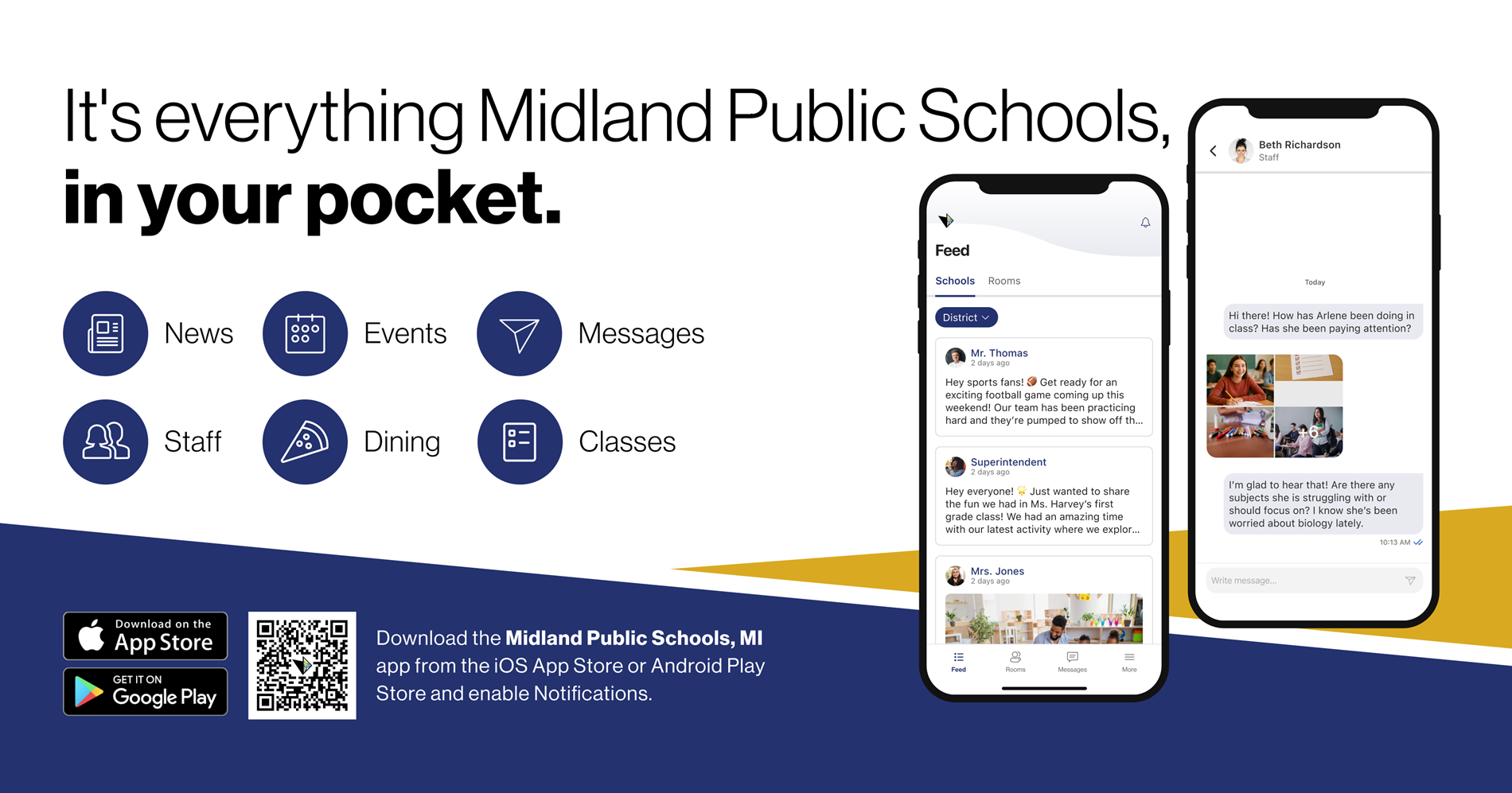
- Download the District App: Search for Midland Public Schools, MI in the App Store or Google Play Store.
- No Extra Download Needed: Rooms is built right inside our district app. Simply open the app and switch to Rooms with one click.
- Prefer a Computer? You can also log in from any web browser here.
Note: Please ensure your phone’s operating system is up to date for the best experience.
Important Additional Resources
- MPS App informational flyer
- Resources for Families from Apptegy
- Send a Message in Rooms
- Navigating a Room
If you have trouble accessing Rooms or have additional questions, please check out the Apptegy Support library, view our frequently asked questions listed below, or contact communications@midlandps.org.
Frequently Asked Questions
While our district app is public, Rooms is a secure space reserved for current MPS families, students, and staff. Access requires a login, so your messages are secure and safe.
Teachers will use Rooms to communicate. Coaches, club advisors, and other staff will use Rooms to communicate with parents and guardians and high school students to share classroom announcements, practice and game schedules, and group or individual messages.
If you're both a parent/guardian and a staff member, you'll need to download both the Apptegy for Staff and MPS apps to communicate on both sides of the platform.
Learn more here or via the image below.
When logging into the app for the first time, or just the first time recently, you may need to log in to Connect.
There are three options to use to log in:
- Phone Number
- Google / Microsoft
You can also visit http://midlandpublicschoolsmi.thrillshare.com to log in from a web browser.
Access these options by clicking the open book icon in the bottom menu. Check out this Quick Start Guide for Families for more details.
Having trouble signing in? If you've lost or forgotten your email sign-in password, reset it by clicking Forgot password on the login screen or here.
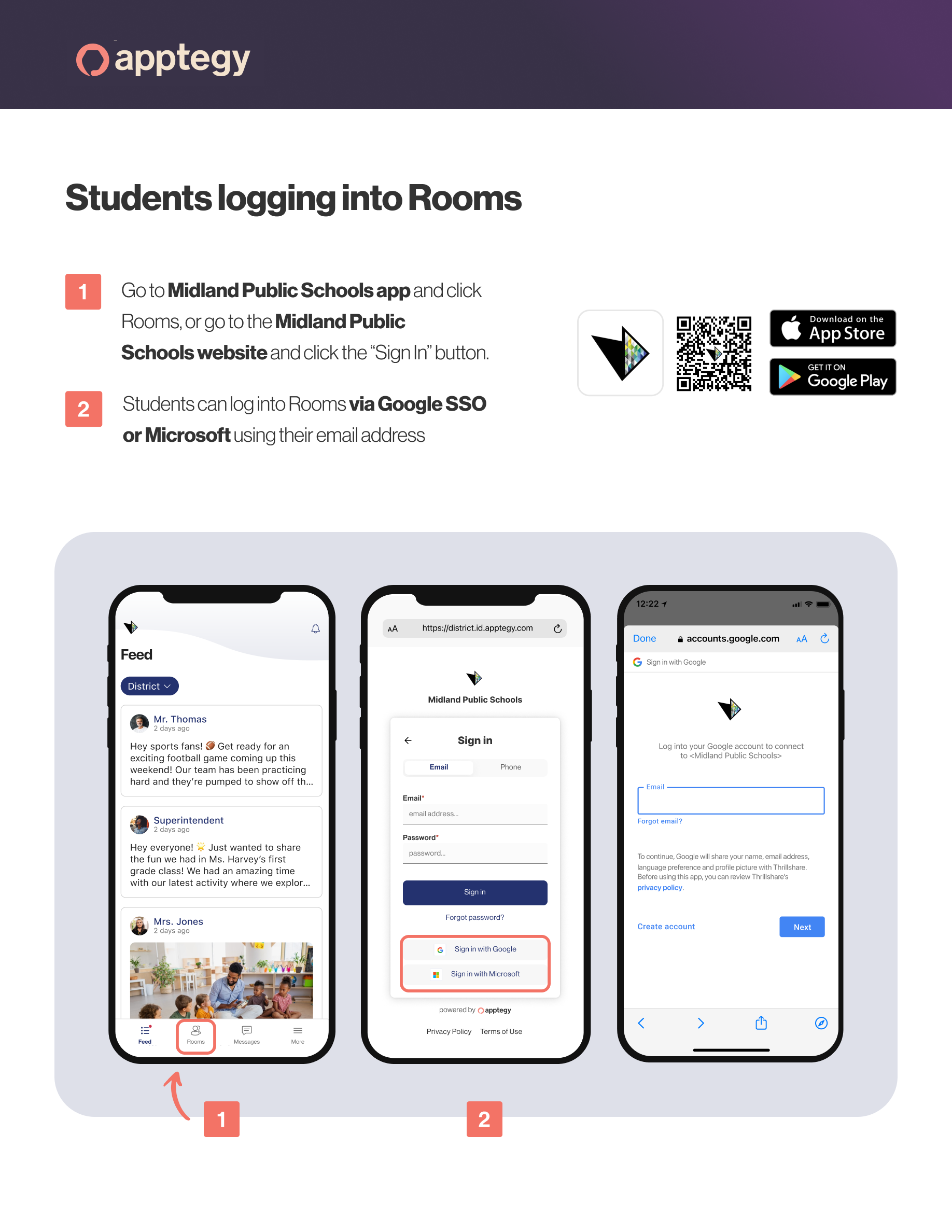
If you're an MPS student, you can use both the MPS mobile app or the web interface for Rooms to log in. You'll use Google Single Sign-on to log in with your MPS credentials. See this flyer or the image below for more information.
Please note: At this time, Rooms is available only to MPS high school students in grades 9-12.
No! Although downloading the mobile app gives you access to lots of great information in one place, you do not need it to use Rooms to communicate. You can use the web browser version, linked via text messages and emails.
To use the web version: After logging in at id.thrillshare.com you'll be directed to the Classes page. This will include all published classes from your student's teachers. Each student has a separate group of classes, switch between students by clicking their name in the left menu bar.
Rooms will replace only the messaging/email function in ParentVUE, which our MPS staff calls Synergy Mail. While no definitive date has been set for turning off Synergy Mail, it is expected to occur in early to mid-December once Rooms has fully and successfully launched.
Rooms will not replace any other functions of ParentVUE, such as information storage, schedules, grading, etc. If you have downloaded the ParentVUE app, you'll continue to use that for the functions mentioned.