
Apptegy Rooms: Info for MPS Staff
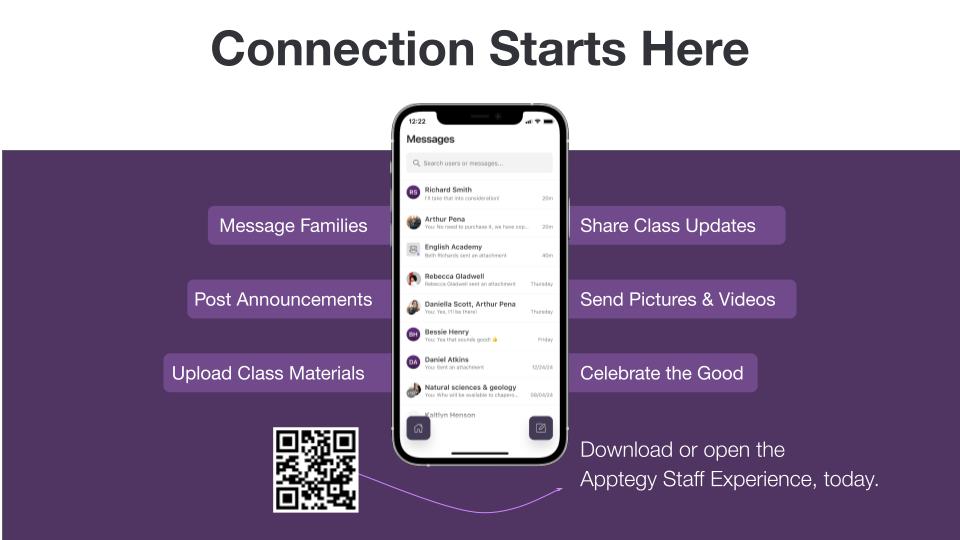
Apptegy is Midland Public Schools' all-in-one communication platform that keeps families connected through a single, easy-to-use system. It brings together school and district news, classroom updates, important alerts, events, and two-way messaging through the MPS website and mobile app, making it easier than ever for families to stay informed and engaged.
What is Apptegy Rooms?
Beginning November 16, 2026, Apptegy Rooms will be Midland Public Schools' primary two-way communication platform, connecting families, teachers, and school administrators in one secure place. Through Rooms, families and secondary students can receive classroom announcements and communicate directly with teachers, coaches, and club advisors. Messages can be delivered through the MPS mobile app, text message, email, or web browser.
Why are we using Rooms?
Rooms is connected directly to the new MPS mobile app, creating a unified and secure communication environment:
- All-in-One Communication: No more juggling multiple apps, flipping between inboxes, or remembering different logins. All two-way teacher communication, school closing alerts, news articles, events, and calendars are centralized in one location.
- Automated Text Notifications: Families receive updates via text message even if they have not yet downloaded the district mobile app.
- Safe and Secure: Built-in moderation tools and district administrator oversight ensure communications remain safe, transparent, and documented for students, families, and staff.
How should I use Rooms?
Rooms should be set up with your class or team rosters (e.g., Mrs. Smith’s Fourth-Grade or Mrs. Hall’s Algebra I) to share information about assignments and school events. Rooms can also be set up for clubs, organizations, and sports teams to communicate important information, such as when the next band concert is or whether practice is canceled.
Rooms has two features: Announcements and Messages. Think about these items like a social media platform. An announcement is like a post: your entire network can see its contents; however, as a viewer, you can’t see and identify the entire audience of the post. A message is like a direct message or a text thread: the conversation and its contents are only between the recipients. If you’re in a group message, you can see the other recipients, who can chime in and add to the conversation.
What doesn't belong in Rooms?
The power of Rooms lies in the two-way connection it provides between staff and parents/guardians and, in some cases, students. It is not intended as a mass-messaging system for all students or parents/guardians in a building. Both the district and each building have other modules in Apptegy, called Alerts and Newsletters, that are better suited to mass one-way messaging. For more information about these modules, please reach out to your building's front office.
How do I access Rooms?
Initial setup is best performed from a laptop or desktop computer:
- Go to midlandpublicschoolsmi.thrillshare.com or click on MPS Staff > Teacher Resources > Apptegy Rooms in the staff bookmarks.
- Select Google Single Sign-on to sign in using your district credentials.
- Desktop: Once logged in, click the Connect dropdown menu in the left navigation sidebar, then select Rooms.
- Mobile: After setup, download the Apptegy for Staff app on your mobile device to send messages and announcements on the go.
Curious about how the app and Rooms work for families and students? Resources for families can be found here.
If you're an MPS staff member and a parent and want to utilize your phone for both purposes, you'll need to download both the Apptegy for Staff app and the Midland Public Schools district app. You can learn more with this helpful guide!
Frequently Asked Questions
Rooms should be set up with your class or team rosters (e.g., Mrs. Smith’s Fourth-Grade or Mrs. Hall’s Algebra I) to share information about assignments, newsletter, school events, photos, and more! Rooms can also be set up for clubs, organizations, and sports teams to communicate important information, such as when the next band concert is or whether practice is canceled.
Rooms has two features: Announcements and Messages. Think about these items like a social media platform. An announcement is like a post: your entire network can see its contents; however, as a viewer, you can’t see and identify the entire audience of the post. A message is like a direct message or a text thread: the conversation and its contents are only between the recipients. If you’re in a group message, you can see the other recipients, who can chime in and add to the conversation.
Even though Rooms makes it easier than ever for parents and guardians to connect with our staff, we still want to ensure that your time is respected and valued. To that end, the expected response time for staff remains similar to that for any other parent/guardian inquiry. If you have questions, please reach out to your building principal.
You can set office hours and availability in Rooms (the "Connect" module) that work with your schedule. Check out this support article to learn how!
Teachers and staff with students assigned to them on a regular schedule will automatically have their rosters synced to them when they sign in to Rooms. To create a Room, navigate to Connect > Rooms > New in the top right-hand corner, then select the roster(s) you’d like to add to your room.
Coaches & Club Advisors: If you oversee student groups for activities outside your regular class schedule, please create a Helpdesk ticket to request that a Helpdesk ticket be created for each team or activity. Once the group is created by the Technology department in Synergy, it will sync with Apptegy and should appear the following day. Use that roster to create your room!
Anyone can also manually create Rooms by uploading a .csv file.
It's easy! You can use these steps to add a co-teacher, co-advisor, a principal, an administrative assistant, or a homeroom teacher if you're an auxiliary teacher - or any other reason!
Steps:
- Go to Connect and open the Room (class).
- Click the three dots in the top‑right corner.
- Select Add Staff.
- Type the staff member’s name and click Add Staff.
You can also add them from the Participants section:
- Open the Room.
- Click the three dots next to Participants → Edit Participants.
- Select the staff member and click Save Changes.
Staff can be set as Moderators (can manage the class) or Members (participate but can’t make admin changes).
Parents: Access Rooms through the official Midland Public Schools app or via the mobile web experience if they do not download the app. Parents who do not download the app still receive all notices and communications via email. Staff are encouraged to share Apptegy's official user guide with families. (See below.)
Students: Students will only be encouraged to use Rooms at the high school level. Access Rooms via id.thrillshare.com on Chromebooks or personal devices, or through the MPS mobile app. Students must select Log in with Google and enter their district school email.
Check out some guides and other documents below to share with families.
Only MPS-affiliated clubs, teams, and activities will be handled through Rooms. All MPS-affiliated clubs and teams should have a staff liaison or a contact person who will have access to Rooms and be responsible for communicating from the district to students and families.
If you believe a coach needs an MPS email address to access Rooms, please create a Helpdesk ticket to request one.
There are two ways for staff to receive notifications in Rooms: through the Apptegy for Staff Mobile App Notifications, and Email Notifications.
Push notifications will send an immediate message from the app directly to the phone screen. Notifications create a badge on the app to show the amount of messages missed/available. In the app badges will appear next to the unread content.
Email notifications are able to be enabled in the Account Settings screen, and are sent hourly for unread content. The two options are:
- Email notifications: Get notified hourly about the unread Messages that you have in Connect.
- Daily digest email: At the end of the day, receive a collection of all the Announcements published in your Classes. Delivered between 6pm and 8pm.
Email notifications are delivered weekdays from 8am to 7pm based on your time zone.
There is no limit to the number of parents, guardians, and students you can add to a Room. However, you cannot create a message thread that contains 300 or more participants.
If you need to send a message to a large Room with 300+ participants, use the Announcements feature to post information relevant to the entire group. (Announcements are one-way, so you can post, but no one else can reply.) If you need to hear from students or parents about your announcement, you can add a note like "Please message me directly if you have any questions." Then, you'll get messages from anyone with questions or answers.
If you need to message groups of parents or students for a certain class, project, team, etc., you can use the Messages feature to create group messages. (Messages are two-way, so everyone in the thread can respond once you've created it.) Message threads can be named, so you can name each group/class thread, allowing you, students, and parents to all message together. Once it's created, you can keep it as the message thread forever.
Because Rooms is meant as a two-way communication tool for parents and guardians, you cannot add more than 7 staff members to a Room. If you need to send a message to staff, please use MPS Gmail.
If you need to brush up on your Rooms knowledge, you have several opportunities to refresh.
- Watch the MPS Rooms training that was recorded on October 26 (password is m^k5XEp7)
- Attend an Apptegy Rooms training on Tuesdays at 6 p.m, Wednesdays at 4:30 p.m., or Thursdays at 3 p.m.
- Log in to Rooms via Google Single Sign-on, then complete the 10-minute self-guided tour in the lower-right corner of the screen.
Most generic questions about how Apptegy works or how to do something in the platform can be answered via Live Chat or Help articles. For more specific MPS-specific questions or expectations, contact the MPS Communications team.
| Support Channel | Contact Info | Availability |
| Apptegy Live Chat | Chat widget on home screen | Monday – Friday, 8:00 AM – 5:00 PM |
| Apptegy Phone & Email | (501) 613-0370 or support@apptegy.com | Monday – Friday, 8:00 AM – 5:00 PM Monitored help desk |
| Apptegy Help Articles | Bottom-left corner of every Thrillshare screen | 24/7 self-service knowledge base |
| MPS Support | MPS Communications Dept. | Email communications@midlandps.org |